
How to Set Up Product Variants in Shopify (2026 Guide)
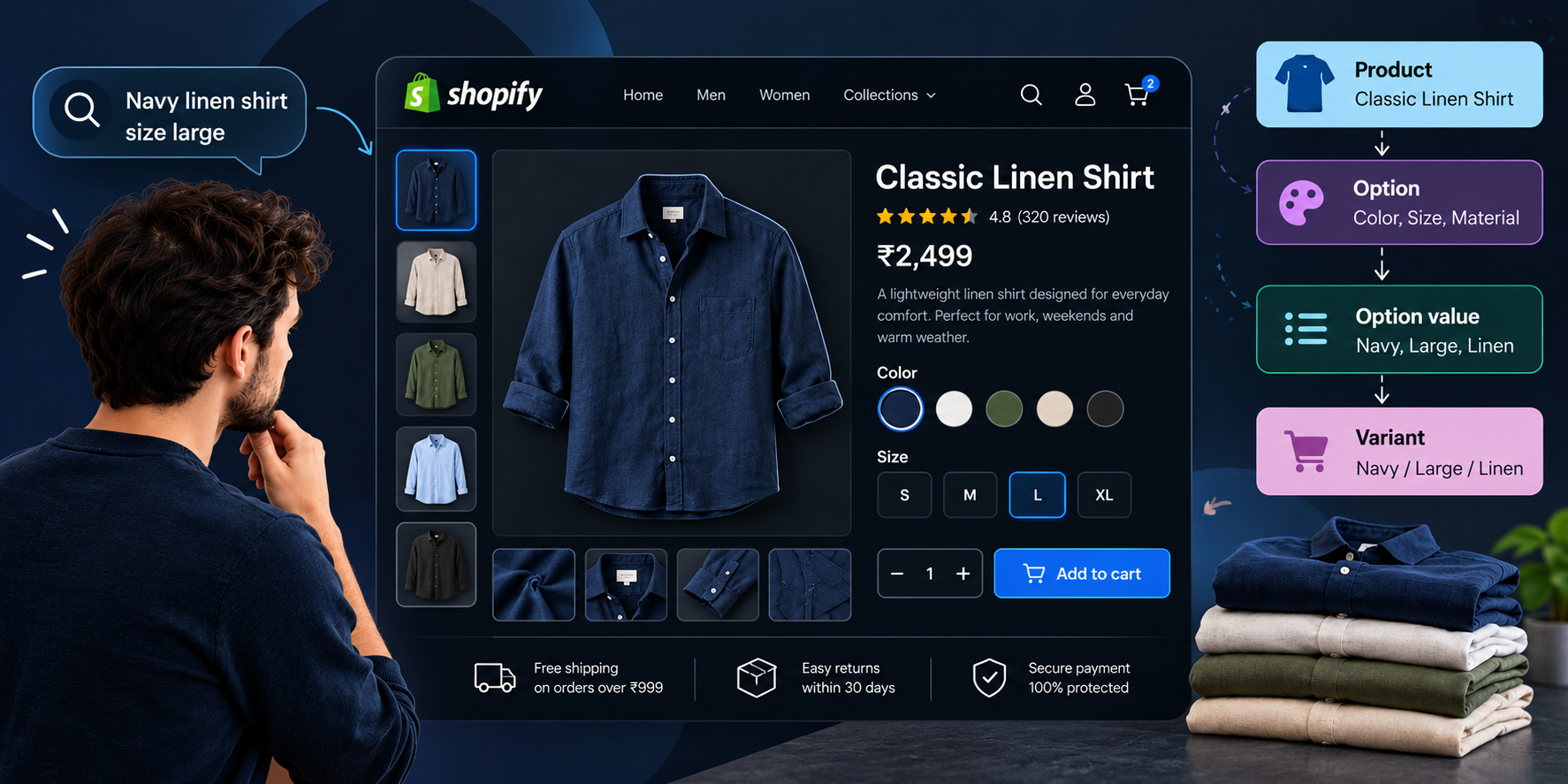
Imagine a shopper searching for a navy linen shirt in size large. If your store makes them open five separate product pages to find it, many of them will simply leave. Product variants solve this problem. They let you sell every version of an item, such as each size, colour or material, from one clean product page.
In this guide, we walk through how Shopify variants work, how to set them up step by step, how to manage them at scale, and which mistakes to avoid so your catalog stays easy to shop and easy to maintain.
What Are Shopify Product Variants?
A variant is one specific version of a product that a customer can buy. Shopify organises this with a simple hierarchy:
- Product: the main item, for example "Classic Crewneck Sweatshirt".
- Option: a category of choice, such as Size, Color or Material.
- Option value: a specific choice inside an option, such as Small, Medium or Large.
- Variant: the unique combination of option values, for example "Small / Blue / Cotton".
Every variant is tracked as its own sellable unit. It can have its own SKU, price, barcode, weight, image and inventory count. In practice, each variant behaves like a separate line item in your warehouse, even though customers see it as one product.
Variant or Separate Product: Which Should You Use?
Not every difference between two items calls for a variant. Use this as a quick guide.
| Situation | Best choice |
|---|---|
| Same item in different sizes or colours | Variants |
| Same item in different materials or finishes | Variants |
| Items aimed at different buyers or price tiers | Separate products |
| Items that need their own reviews, descriptions and URLs | Separate products |
Variants keep reviews, content and search authority together on one page. Separate products give each item its own page, which makes sense when the products really serve different needs.
How Many Variants Can a Shopify Product Have?
Shopify allows up to 3 options per product. The number of variants per product used to be capped at 100, but Shopify has since raised the limit to 2,048 variants per product. This helps furniture, apparel and made-to-order stores that combine many sizes, fabrics and finishes.
If your store still seems limited, check whether an older theme or a third-party app is enforcing the previous cap. Limits can change, so confirm the current figures in the Shopify Help Center before planning a large catalog.
Step-by-Step: How to Add Variants to a Product
Setting up variants is easiest while you create the product.
- In your Shopify admin, go to Products and click Add product.
- Enter the title, description and main images.
- Scroll to the Variants section and click Add options like size or color.
- Choose an option name from the list (Size, Color, Material, Style) or type a custom one.
- Type each option value and press Enter or add a comma. Repeat for every choice.
- Click Add another option if you need a second or third option.
- Click Done, then review the list of variants Shopify generates.
Shopify automatically creates every combination of the values you enter. From the same screen you can then set prices, quantities, SKUs and images for each variant.
Configure the Details That Make Variants Work
Naming the variants is only the start. These details decide whether the setup is professional or frustrating.
Assign an Image to Each Variant
Customers should see exactly what they are choosing. Click the image icon next to a variant and attach the matching photo. When a shopper selects "Forest Green", the main product image should switch to the green version immediately. If it does not, check that your theme supports variant image switching.
Set Prices and Inventory per Variant
Variants do not need to share the same price. A king-size mattress can cost more than a twin, and a rare colour can carry a premium. Set the price and stock quantity on each variant so reporting stays accurate.
Give Every Variant a Unique SKU
A unique SKU is what allows your inventory, shipping tools and marketplace channels to identify the exact item that sold. Missing or duplicated SKUs are one of the most common causes of stock errors, so treat them as required, not optional.
Add Barcodes
If you plan to sell through Shopify POS or list products on Google Shopping, add the GTIN, UPC or EAN for each variant.
Use Metafields and Categories for Richer Product Data
Three options are not always enough to describe a product. Shopify's standard product taxonomy and metafields let you store extra structured information, such as:
- Care instructions that differ by fabric
- Exact dimensions for each furniture size
- Fit guides or size charts
- Ingredient or material details
When you pick a product category, Shopify suggests attributes that match it. A compatible theme can then display this data on the product page, for example as colour swatches in place of a plain dropdown. This helps customers decide with confidence and reduces returns.
Edit Variants in Bulk
Updating dozens of variants one at a time wastes hours. Instead:
- Open the product in the admin.
- In the Variants section, select the variants you want to change.
- Choose Bulk edit to update prices, SKUs and quantities in a spreadsheet-style view.
For catalogs with thousands of products, use Shopify's CSV import and export, or a bulk-editing app such as Matrixify. Editing in a spreadsheet and re-importing can save days of manual work.
Best Practices for Better UX and SEO
- Remove combinations you do not sell. If there is no Small in Pink, delete that variant so shoppers never pick an option that cannot be bought.
- Use descriptive option values. "Navy Blue Silk" is clearer than "Blue" for customers, store search and search engines.
- Link straight to a variant. Shopify supports URLs that open a specific variant. Use them in email campaigns and ads so shoppers land on the exact item they saw.
- Keep option order consistent. Use the same option names and order across similar products so shoppers know what to expect.
- Use clear, high-quality images for every colour or style, since images drive most variant decisions.
Common Problems and How to Fix Them
Variant images do not change. Check your theme. Most current themes switch images automatically, but older or heavily customised themes may need updates to the product template.
You need more than three options. If a product needs Size, Color, Material and another choice such as length, you can use a product options app that collects the extra choice as a line item property. The trade-off is that these apps often do not track stock for each combination as cleanly as native variants, so test the inventory behaviour first.
Variants are slow to manage. Move repetitive edits to bulk editing or CSV files, and keep a naming standard for SKUs from day one.
Key Takeaways
- Use variants for true versions of the same product and separate products for different buyer needs.
- Fill in SKUs, prices, barcodes and images for every variant.
- Remove combinations you do not sell.
- Use metafields to add information that standard options cannot hold.
- Rely on bulk editing and CSV tools as your catalog grows.
Getting variants right once saves you from inventory mix-ups and frustrated customers later, and it gives even a small store the polished shopping experience of a larger brand.
Frequently Asked Questions
How do I add variants to a product in Shopify?
Go to Products in the admin, open the product, scroll to Variants and click Add options like size or color. Enter an option name and its values, and Shopify generates every combination. You can then set the price, SKU, quantity and image for each one.
What is the maximum number of variants in Shopify?
A product can have up to 3 options. The variant limit was previously 100 and has been raised to 2,048 per product. Check the Shopify Help Center for the current limits on your plan.
Can I set different prices for different variants?
Yes. Every variant has its own price field, so you can charge more for a larger size or a premium material.
Can I hide out-of-stock variants?
Yes, with the right theme settings or an app. Many themes let you disable or hide sold-out options so shoppers only see what they can buy.
How do I track inventory by variant?
Enable inventory tracking on the product, then enter the quantity for each variant. Shopify updates the count as orders are placed.
Need Help Setting Up Your Shopify Store?
Variants, metafields, bulk imports and theme customisation can get complicated as your catalog grows. At Teenva AI & Digital Ventures, our team builds, customises and optimises Shopify stores, from product structure and theme development to integrations and migrations.
If you want your Shopify store set up properly and ready to scale, get in touch with us at sales@teenvaai.com, call +91 9572020107, or visit teenvaai.com.