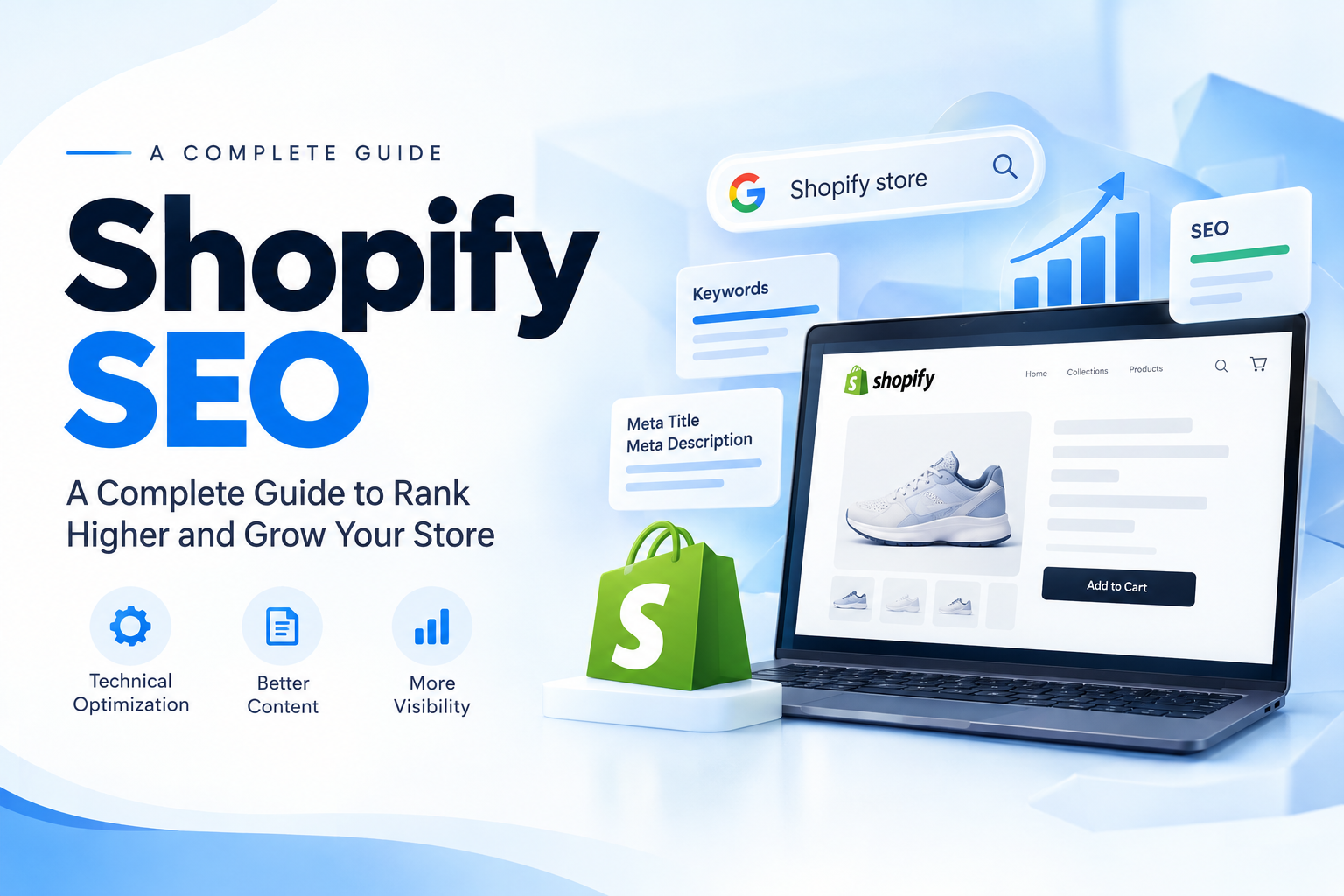


Website Speed Optimization for Shopify Stores (2026)
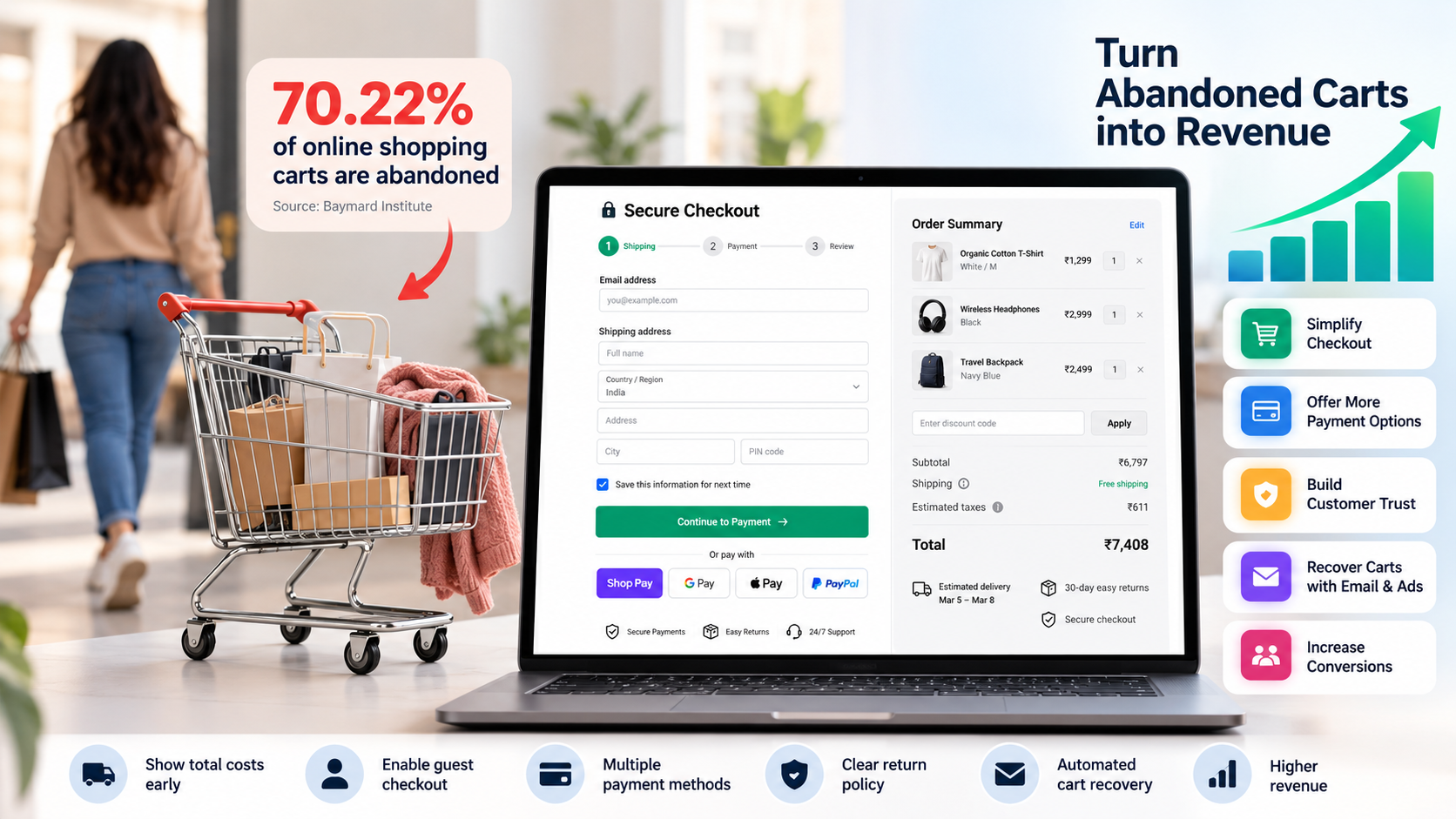
Shoppers rarely complain about a slow store. They simply leave. A product page that takes too long to show its main image, a button that reacts a beat too late, or a layout that jumps just as someone is about to tap "Add to cart" are all small frustrations that add up to lost orders. Website speed optimization is the work of removing those frustrations so customers can browse and buy without friction.
This guide explains how to measure your Shopify store's performance, understand what the numbers mean, and prioritize the fixes that actually move the needle.
What Is Website Speed Optimization?
Website speed optimization is the process of reducing the time it takes for pages to download, render and become usable in a visitor's browser. For an ecommerce store, the goal is practical: pages should load quickly enough that customers can find a product and complete a purchase before impatience sets in.
Performance can be looked at in two ways:
- Page speed: how fast an individual URL, such as a single product page, loads.
- Site speed: how loading performance varies across the different pages of your store.
The Three Core Web Vitals You Need to Know
Google uses three Core Web Vitals to describe real-world user experience. These are the benchmarks worth tracking for any store.
| Metric | What it measures | Good score |
|---|---|---|
| Largest Contentful Paint (LCP) | How quickly the biggest visible image or text block appears | 2.5 seconds or less |
| Interaction to Next Paint (INP) | How quickly the page visually responds to taps and clicks | 200 milliseconds or less |
| Cumulative Layout Shift (CLS) | How much content moves around unexpectedly while loading | 0.1 or less |
Aim for at least 75% of visits to meet each target, and check mobile and desktop separately, since the two often tell very different stories.
One common misunderstanding: LCP is not the time taken for every element on the page to finish loading. It only tracks when the largest visible element appears, which is why a page can feel fast on paper and still have other issues.
Why Speed Matters for Sales, SEO and Ad Spend
Conversions. Slow pages give shoppers more reasons to abandon a visit. Even small delays can reduce the share of visitors who go on to buy, and on a store with steady traffic that gap turns into real revenue very quickly.
Search visibility. Google has confirmed that Core Web Vitals are part of its page experience signals. Good scores will not guarantee top rankings, because relevance still comes first, but a slow store gives competitors an edge when content quality is similar.
Paid traffic. Landing page experience feeds into ad quality and cost per click. If paid visitors bounce before the page finishes loading, your cost per sale rises even when your cost per click stays the same.
A note on the popular "three-second rule": it is a handy design guideline, not an official Google standard. For actual measurement, rely on Core Web Vitals.
What Slows Down a Shopify Store
Shopify takes care of hosting, a global content delivery network and server-side rendering for you. That means most speed problems come from what gets added on top of the platform.
Too many apps
Every app that injects scripts into your storefront gives the browser more to download and run. A single review widget can trigger extra requests for code, images and review data. Audit your apps regularly, remove the ones you no longer use, and ask the developer to confirm that no leftover code remains in your theme afterwards. When choosing new apps, favour those that are built with performance in mind, and test them on your own store before committing.
A heavy theme
Themes loaded with animations, sliders and complex features can drag down every page. Choose a modern, performance-focused theme and keep customizations lean. Fast foundations matter more than quick patches applied later.
Oversized images
Images are usually the largest portion of a page's weight. Shopify's image delivery automatically compresses files and serves modern formats, but your theme still decides which sizes the browser requests. Poorly configured themes can load a huge image into a tiny space.
Third-party scripts and tracking tags
Analytics, advertising pixels and tag managers all add network requests. Tags that are duplicated across apps and your tag manager are a common source of wasted effort.
Inefficient theme code
Repeated Liquid loops that search for the same data more than once, or scripts that block the browser while they download, quietly add delay to every page view.
How to Test Your Store's Speed
Use real-user data first, then lab tools to dig into causes.
- Pick representative pages. Test your homepage, a busy collection page and a popular product page rather than only the homepage.
- Review Shopify's Web Performance reports. Found under Analytics, these show real-user LCP, INP and CLS by page and device, so you can spot the URLs that need attention.
- Run Google PageSpeed Insights. Check mobile and desktop separately, and note whether the real-user data applies to the specific URL or to the whole origin.
- Trace slow requests. Tools such as GTmetrix or Pingdom show a waterfall of requests, which makes it easy to find large files and slow-loading resources.
- Fix one thing, then retest. Use the same settings each time and compare several runs, so you know which change made the difference.
Keep in mind that real-user data covers a rolling period of roughly four weeks, so improvements can take time to appear in reports.
Fixing the Most Common Problems
| Metric | Typical Shopify cause | First fix |
|---|---|---|
| LCP | Oversized hero image, or lazy loading applied to the main visible image | Resize the image to its display size and make sure it loads promptly |
| INP | Heavy JavaScript from themes, apps or tracking tags | Remove unused scripts and reduce code that blocks the browser |
| CLS | Images without dimensions, or app widgets pushing content down | Set image dimensions and reserve space for widgets before they load |
10 Practical Ways to Speed Up Your Shopify Store
1. Keep your theme current and lightweight
Choose a theme that is regularly updated and built for performance. Avoid piling on effects and sections that add code without adding value.
2. Reconsider quick view on collection pages
Some quick-view features preload product data for every item in a collection. If few shoppers use it, the performance cost may not be worth it.
3. Limit pop-ups
Pop-ups can be useful for capturing emails, but too many add code and distract from the page. Trigger them on exit intent or after a short delay so they do not compete with the initial load.
4. Simplify homepage sliders
A large multi-slide hero is one of the easiest ways to slow a homepage. Use a single strong image, or limit yourself to two or three static sections instead of an auto-rotating carousel.
5. Right-size your images
Upload good-quality images, then make sure your theme requests appropriately sized versions through responsive image techniques. Remove duplicate product shots and decorative images that add little information.
6. Use lightweight video embeds
Standard video embeds can download extra files before anyone presses play. A lightweight embed loads only the thumbnail first and brings in the full player when the shopper clicks, saving a significant amount of data.
7. Clean up redirects and broken links
Chains of redirects and broken asset links create extra requests and can hurt SEO. Use Shopify's built-in redirects for moved pages, update internal links after a migration, and run a broken link check periodically.
8. Lazy load content below the fold
Let the title, main image and description load first, and defer reviews, social feeds and other supporting content until shoppers scroll to them. Just avoid lazy loading the main image at the top of the page, which can hurt LCP.
9. Unblock scripts that delay rendering
Scripts loaded in the standard way pause the browser while they download. Using the defer or async attributes lets the page keep building. Because they change the order in which code runs, have a developer check dependencies and test navigation, product options and the cart afterwards.
10. Tidy your tracking setup
Review pixels under Customer events, remove tags you no longer use, and make sure the same event is not being tracked twice by different tools.
Optimizing for Mobile Shoppers
Most store visits happen on phones, so test the full journey on a real device over a mobile connection, from landing page to completed checkout. Look at how quickly product images appear, whether buttons respond promptly, and whether forms are easy to complete with a thumb. Filter your performance reports by mobile to find the pages with the weakest scores.
Enabling a fast checkout option such as Shop Pay also helps, because returning customers can reuse saved details instead of typing them into a small screen.
A Simple Process to Follow
- Record your baseline. Save Core Web Vitals and conversion rate for your key pages, separated by mobile and desktop.
- Make the easy wins first. Remove unused apps and sections, simplify sliders and disable unnecessary animations.
- Bring in help for code-level issues. Problems caused by theme code, custom features or several integrations working together are best handled by an experienced Shopify developer.
- Retest and monitor conversions. Compare against your baseline, and note any promotions or traffic changes that could also affect results.
- Make it a habit. Review performance after every theme update or app installation so new additions do not undo your progress.
Frequently Asked Questions
What is a good website speed for a Shopify store?
Aim for an LCP of 2.5 seconds or less, an INP of 200 milliseconds or less and a CLS of 0.1 or less, for at least 75% of visits, on both mobile and desktop.
Why is my Shopify store slow?
The usual causes are oversized images, too many apps, heavy JavaScript from themes and tracking tags, and unoptimized theme code. PageSpeed Insights and Shopify's Web Performance reports will show where to look first.
Does website speed affect SEO?
Yes. Core Web Vitals are part of Google's page experience signals, so faster pages can support better search performance, although relevance remains the most important factor.
How often should I check my store's speed?
Review it after every theme update, new app installation or major campaign, and check your real-user reports regularly so problems are caught early.
Can I fix speed issues without a developer?
Many improvements, such as removing unused apps, simplifying sliders and trimming sections, can be done in the theme editor. Code-level issues usually need a developer.
Get Your Shopify Store Faster with Teenva AI
Speed work is rarely a one-time fix. It is a mix of measuring the right things, removing what you do not need and getting the technical details right. At Teenva AI & Digital Ventures, our team helps ecommerce brands audit their Shopify stores, clean up themes and apps, resolve Core Web Vitals issues and build faster storefronts that convert better.
If your store feels slower than it should, or you want help implementing the fixes above, get in touch with us:
- Email: sales@teenvaai.com
- Phone: +91 9572020107
- Website: teenvaai.com
Let us help you turn a faster store into more sales.