

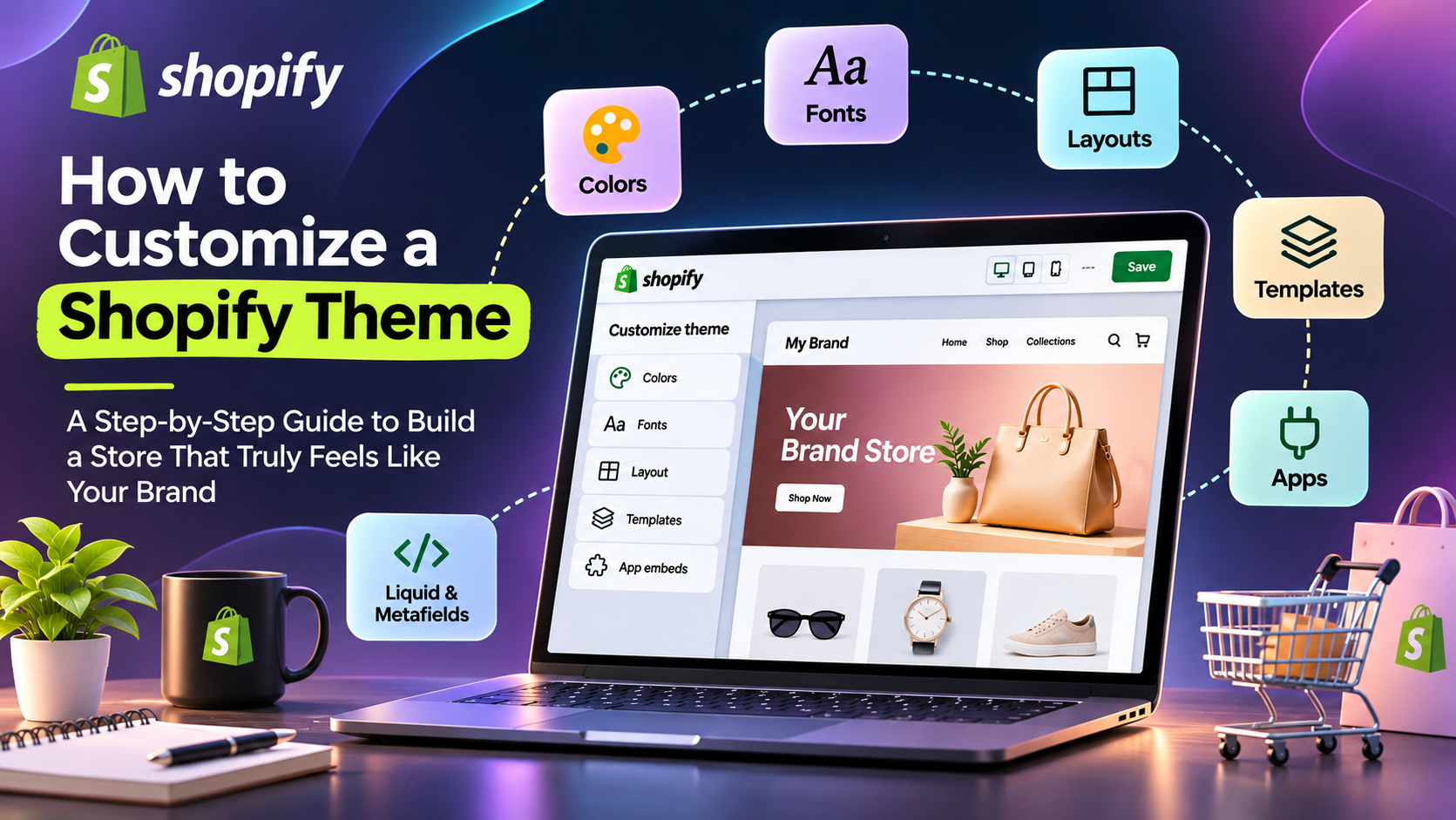
How to Customize a Shopify Theme: 2026 Step-by-Step Guide
Want your online shop to look like it belongs to your brand and not like every other store using the same template? Learning how to customize a Shopify theme is the quickest way to get there. A theme gives you a ready-made structure, and customization is everything you do afterward: adjusting colors, fonts, layouts, page templates and even checkout so the store feels unmistakably yours. This guide walks you through each option in plain language, with no coding required to get started.
What Does Shopify Customization Really Mean?
Shopify customization is the process of reshaping your storefront's design and behavior to match your brand. Your theme supplies the skeleton. You supply the personality. Most changes happen inside the built-in theme editor, while bigger ideas can be handled with apps, Liquid code or a fully custom storefront.
It helps to separate two ideas:
- UI (user interface): what shoppers see, such as colors, buttons, images and typography.
- UX (user experience): how easily shoppers find products and finish their purchase.
Good customization improves both. A beautiful store that is confusing to buy from will still lose sales, especially at checkout.
The Four Levels of Customization
- Quick tweaks: swap the logo, banner, fonts and badges.
- Block-based layouts: drag, stack, hide or reorder blocks on any page.
- AI-assisted blocks: describe a feature in a sentence and let Shopify generate it, on eligible stores.
- Developer-level work: custom Liquid, scripts, APIs and metafields for bespoke features.
Should You Hire a Developer or Do It Yourself?
Not every project needs a developer. Use this simple rule: if the theme settings already offer the change you want, do it yourself. If you need a brand-new section, a special integration or a heavily reworked layout, bring in a professional.
Five Practical Ways to Make Your Store Your Own
1. Pick the Right Theme
Open Online Store > Themes in your Shopify admin and browse the Theme Store. Free themes are built and supported by Shopify. Paid themes come from independent developers and are a one-time purchase that includes updates and general support. A new theme lands in your draft area, so you can customize and preview it safely before it goes live.
Pre-built themes are affordable and quick to launch. A custom-built theme costs more and takes longer, but it is shaped around your exact requirements. Newer block-based options, such as the Horizon family, let you nest blocks inside sections for very flexible layouts.
2. Adjust Theme Settings
Click Customize next to your theme to open the editor. Here you control the look of the whole store at once:
- Colors: set background, text, button and link shades. Pull the hex codes straight from your logo or brand guide so every page matches.
- Fonts: choose one or two readable typefaces. Pair a serif heading with a clean sans-serif body, or use different weights of a single family.
- Sizes: keep heading and body sizes consistent so pages are easy to scan.
3. Build Templates
A template defines the layout for one type of page. Change it once and every page using it updates. In the editor, choose a page type from the selector, click Create template, name it, and base it on an existing one. Then add sections, arrange blocks and save. Templates are perfect for giving a campaign landing page its own distinct look.
4. Add Features with Apps
The Shopify App Store fills the gaps your theme leaves open. Popular uses include:
- Smarter search and filters
- Related-product recommendations that lift order value
- Customer reviews and ratings
- Extra elements on thank-you and order-status pages
5. Switch On App Embeds
Some apps work across the whole site rather than in one spot, like a chat bubble or background analytics. These are app embeds. Go to Edit theme > App embeds, toggle the app on, adjust its settings and save. Remember to repeat this if you ever publish a different theme.
Getting the Most from the Theme Editor
The editor is your main workspace, with a live preview on the right and your sections on the left. A few habits make the process smoother:
- Start from a preset that suits your brand, then fine-tune it.
- Build the homepage first: hero banner, featured products, main call to action.
- Check the mobile view before you save anything.
- Duplicate your theme as a backup before experimenting.
- Keep image files light, since large uploads slow your store down.
Inside the editor you can also add, hide and reorder sections, switch between desktop, tablet and mobile previews, edit built-in text through the language editor, and pull in dynamic data such as metafields.
Going Further: Liquid and Metafields
Liquid is Shopify's templating language. It lets developers display product details, apply simple if-then logic, reuse code snippets and craft custom layouts. For example, a short Liquid condition can show "Available" when an item is in stock and "Out of stock" when it is not.
Metafields store extra information that standard product fields cannot hold, such as fabric type, care instructions or a size chart for a clothing brand. Create a definition, add values to your products, then connect them through dynamic sources in the editor or reference them in Liquid.
Customizing Specific Pages
Different pages are edited in different places:
| Page type | Where to edit |
|---|---|
| Home, product, collection, cart, blog | Theme editor |
| Checkout, thank-you, order status, customer accounts | Checkout and accounts editor (Settings > Checkout) |
| Product descriptions, blog posts, page copy | Shopify admin |
Keep in mind that a template shared by many products updates all of them whenever you edit it. If a group of products needs a different layout, create an alternate template just for them. Checkout customization depends on your plan: every paid plan can apply branding and eligible apps, while Shopify Plus unlocks app blocks on more checkout steps and deeper branding controls.
Final Thoughts
You do not need to be a coder to build a distinctive Shopify store. Start with a solid theme, set your colors and fonts, create templates for your key pages, and layer in apps where you need extra features. When you outgrow what the editor offers, a developer can take you further with Liquid and metafields. Preview often, back up before big changes, and always test on mobile. Step by step, learning how to customize a Shopify theme turns your store into one customers remember.
Frequently Asked Questions
Can I customize a Shopify theme without coding? Yes. The theme editor handles colors, fonts, layouts and content without any code.
Will I lose my changes if I update or switch themes? Duplicate your theme first as a backup. App embeds also need to be re-enabled when you publish a new theme.
When should I hire a Shopify developer? Hire one when you need new sections, custom functionality, integrations or major layout changes the editor cannot provide.